> ## Documentation Index
> Fetch the complete documentation index at: https://artemis.ai/docs/llms.txt
> Use this file to discover all available pages before exploring further.
# Dune
> Pulling data programmatically from Dune into Excel / GSheets
Artemis Sheets allow you to pull individual charts or queries programmatically from [Dune](https://dune.com/browse/dashboards) directly into your Excel / GSheets.
.png?fit=max&auto=format&n=NNkNKnlLcFniLQiw&q=85&s=cd5683e525043cadf199d9829178da90)
.png?fit=max&auto=format&n=NNkNKnlLcFniLQiw&q=85&s=4faa51b8f786a96c13ba202f98b1b7c6) ##
## 1. Setup
### Google Sheet
1. Get your Dune API key by navigating to the [Dune API settings page](https://dune.com/settings/api).
2. Click "Create new API key":\\
##
## 1. Setup
### Google Sheet
1. Get your Dune API key by navigating to the [Dune API settings page](https://dune.com/settings/api).
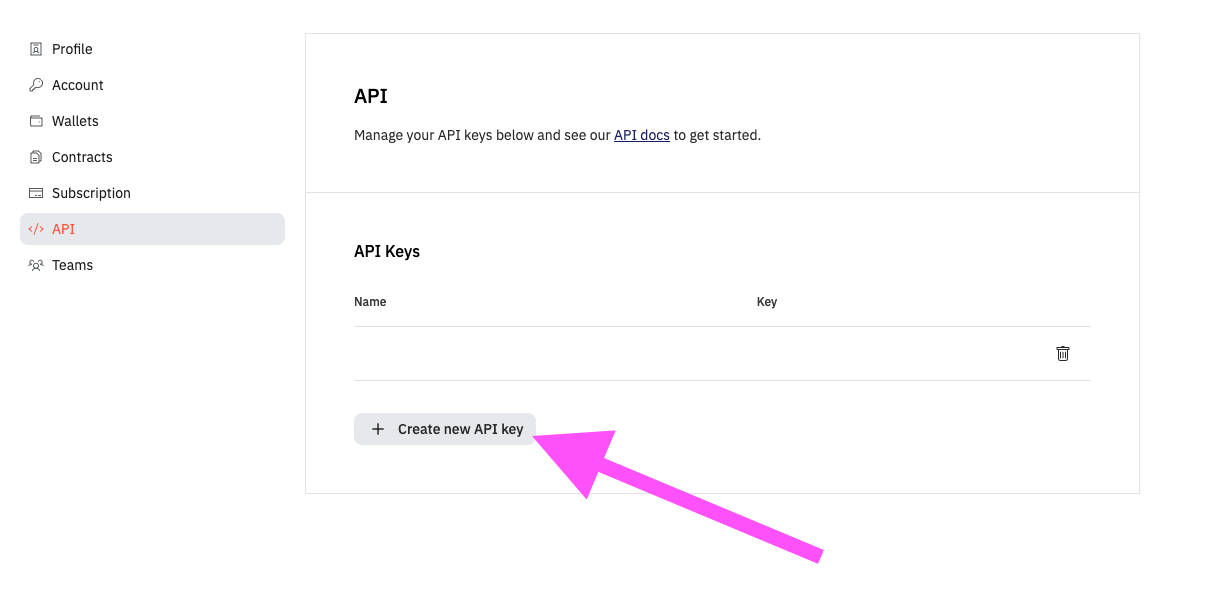
2. Click "Create new API key":\\
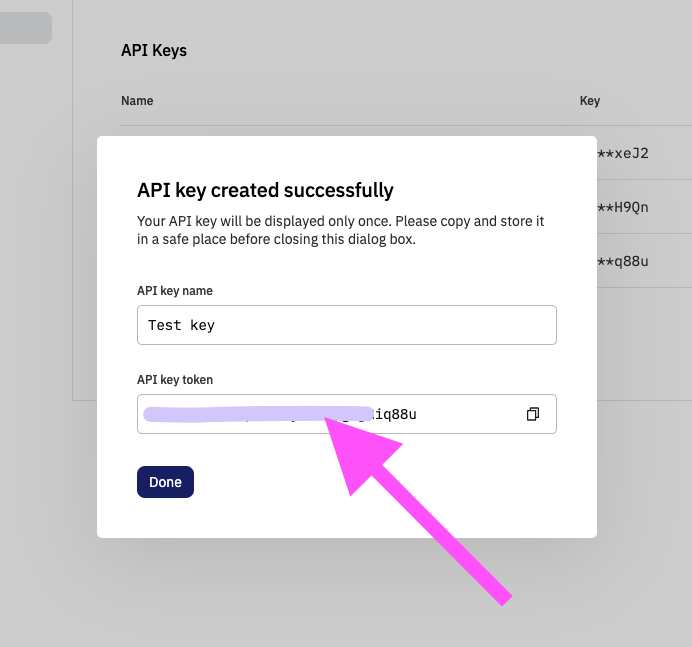
 3. Copy the new API key:\\
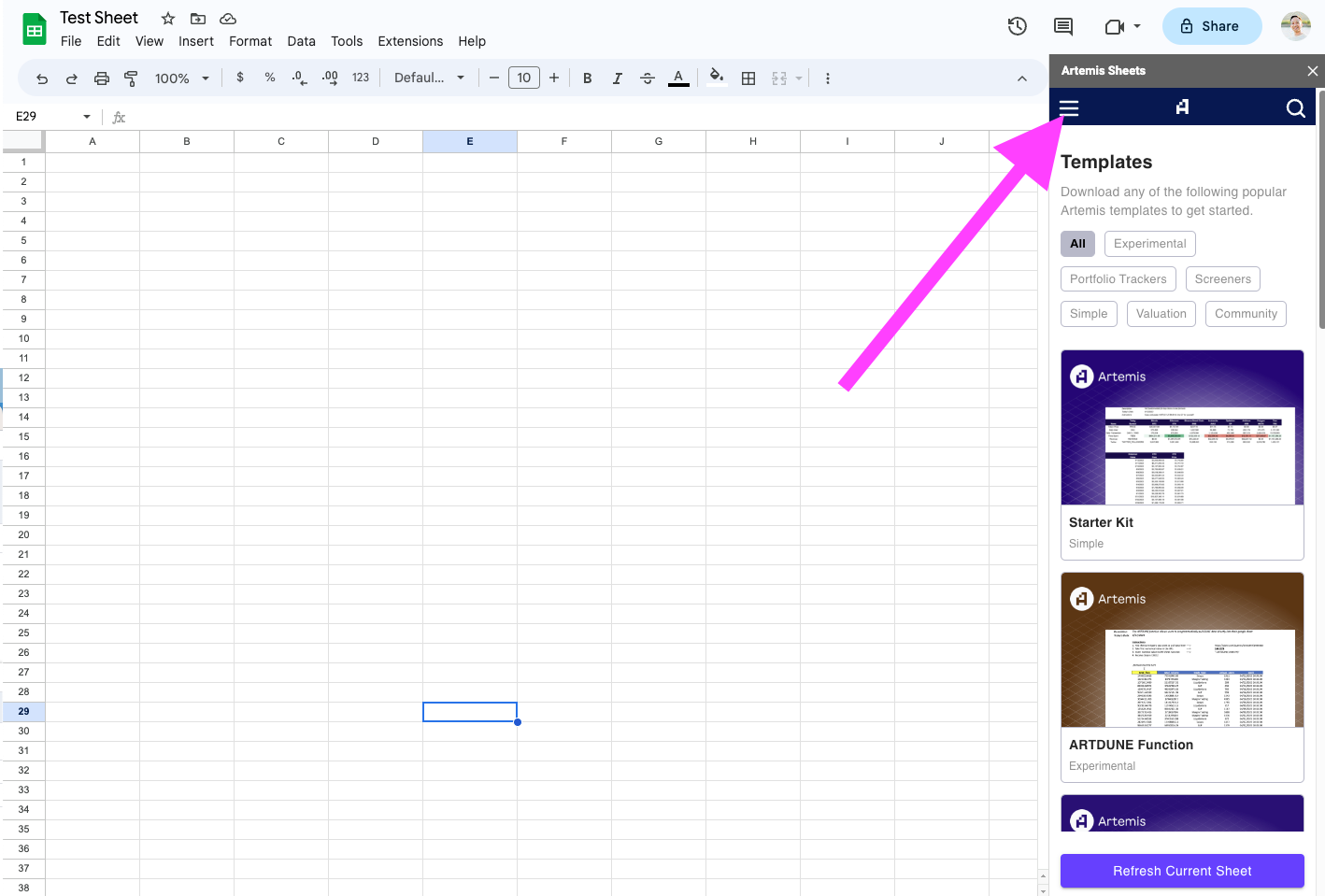
 4. Go to your Google Sheet with Artemis Sheets installed (installation instructions [here](/artemis-sheets/installation-and-usage)) and open the side bar. Click on the settings menu:\\
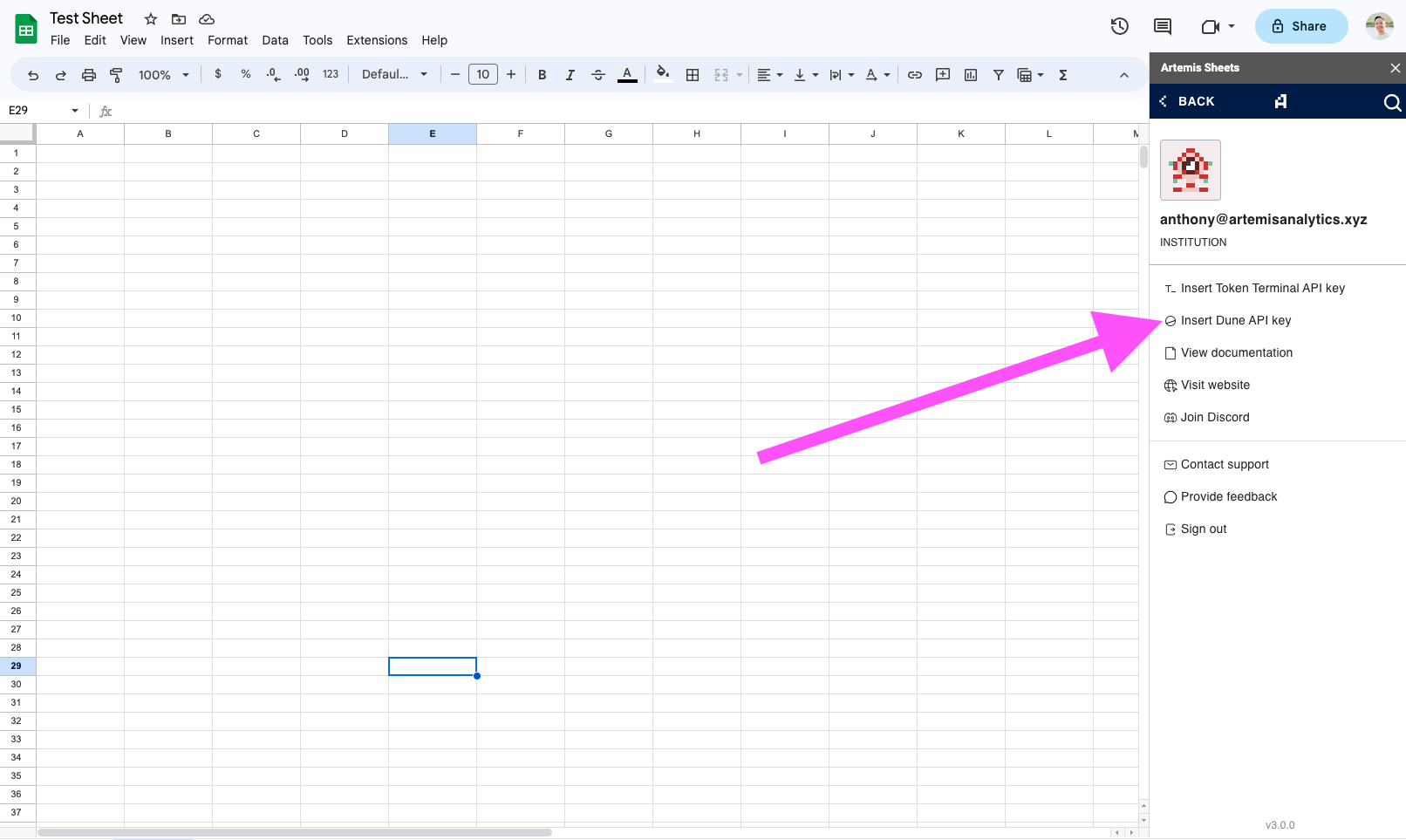
 5. Click "Insert Dune API Key":\\
 6. Past the Dune API key into the text box and click "Ok":\\
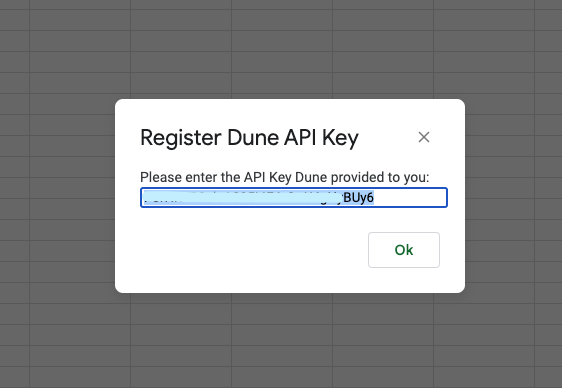 7. Done!
### Excel (Windows)
1. Get your Dune API key by navigating to the [Dune API settings page](https://dune.com/settings/api).
2. Click "Create new API key":\
\\
7. Done!
### Excel (Windows)
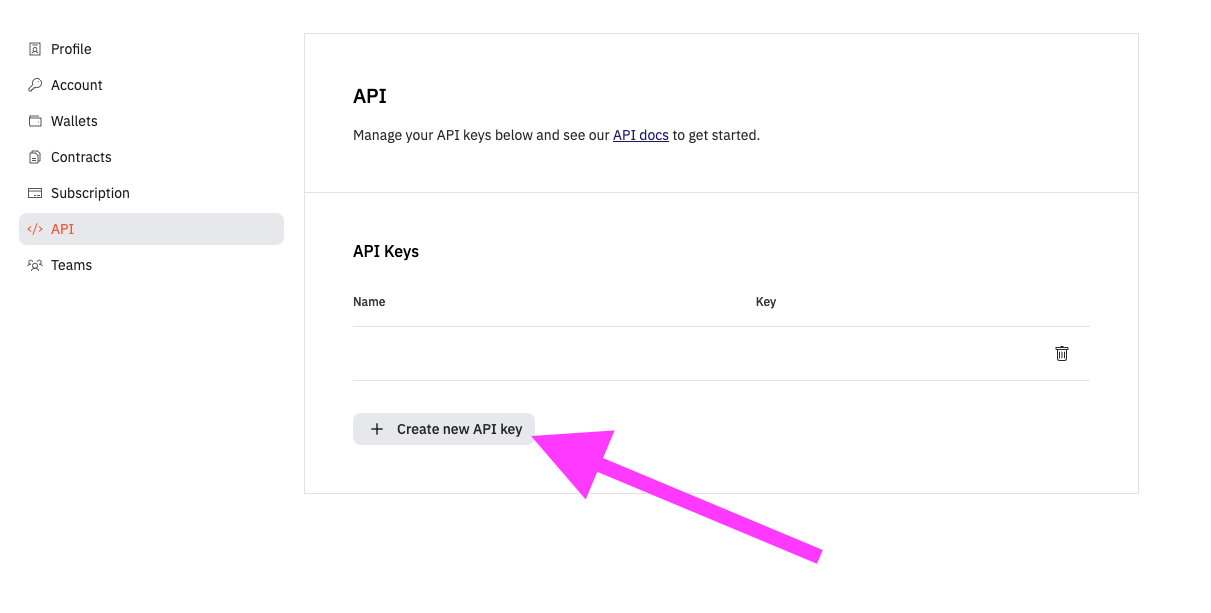
1. Get your Dune API key by navigating to the [Dune API settings page](https://dune.com/settings/api).
2. Click "Create new API key":\
\\
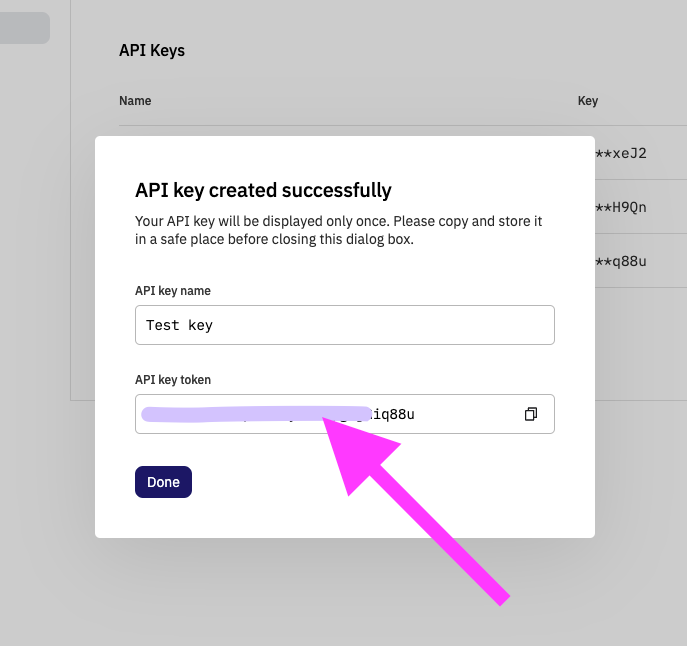
 3. Copy the new API key:\\
 4. Go to your Excel application with Artemis Sheets installed (installation instructions [here](/artemis-sheets/installation-and-usage)) and click on the "Artemis Sheets" menu bar item. Then click on the "External providers API keys" button:\\
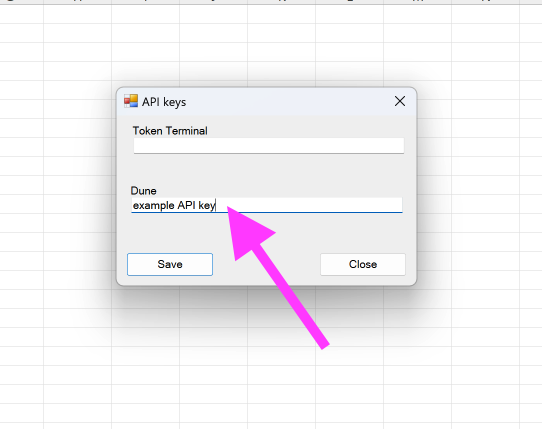
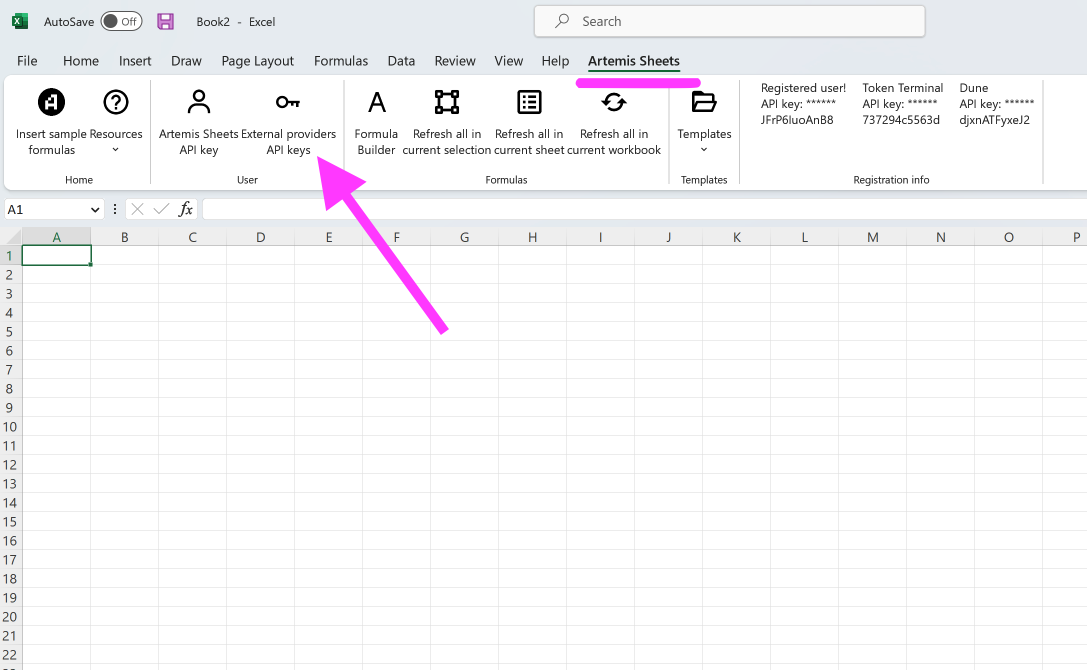 5. Past the Dune API key into the Dune text box and click "Save":\\
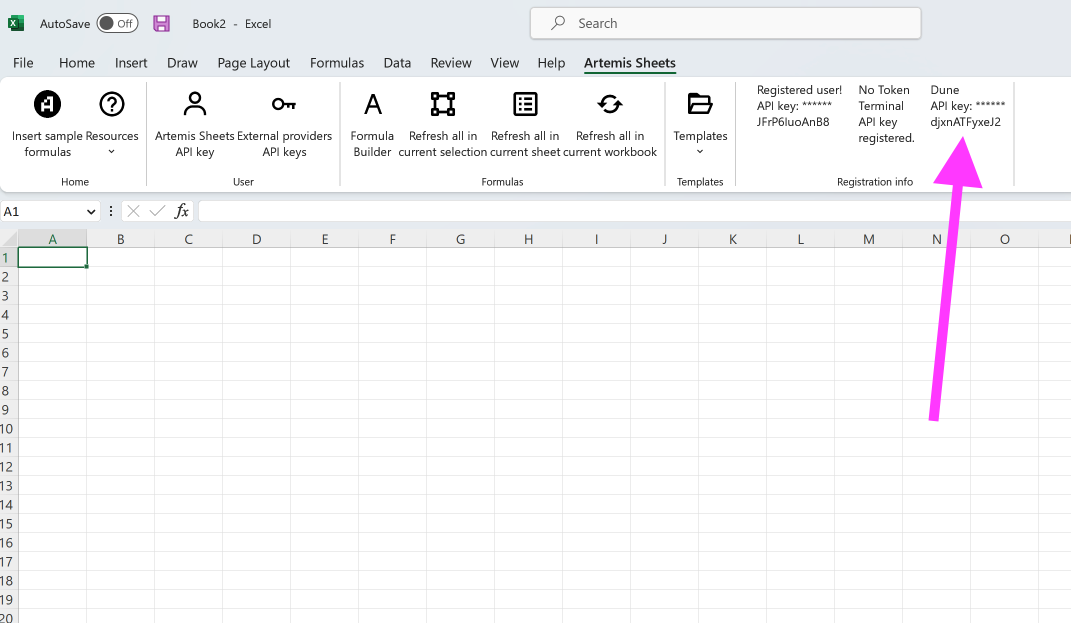
 6. Done! You should see your masked Dune API key displayed at the top right:\\
 ## 2. Usage
#### 1. Find your Dune query ID:
1. Locate a dashboard from Dune you're interested in pulling. In the example above, we use this [GMX Everything Dashboard](https://dune.com/gmxtrader/gmx-dashboard-insights).
2. Locate a chart from the dashboard you'd like to pull.
3. Click on the chart title - this should take you to the [chart's query](https://dune.com/queries/1443379/2445683).
## 2. Usage
#### 1. Find your Dune query ID:
1. Locate a dashboard from Dune you're interested in pulling. In the example above, we use this [GMX Everything Dashboard](https://dune.com/gmxtrader/gmx-dashboard-insights).
2. Locate a chart from the dashboard you'd like to pull.
3. Click on the chart title - this should take you to the [chart's query](https://dune.com/queries/1443379/2445683).
.png?fit=max&auto=format&n=NNkNKnlLcFniLQiw&q=85&s=1e52fa322506b39bdb4a631326a5b499) 4. The `queryId` is the first number in the URL. For example, the GMX Platform Volume URL is: [https://dune.com/queries/1443379/2445683](https://dune.com/queries/1443379/2445683). Therefore, its `queryId` is `1443379`
#### 2. Syntax
`=ARTDUNE(queryId)`
In the example above, we use:
`=ARTDUNE(1443379)`
4. The `queryId` is the first number in the URL. For example, the GMX Platform Volume URL is: [https://dune.com/queries/1443379/2445683](https://dune.com/queries/1443379/2445683). Therefore, its `queryId` is `1443379`
#### 2. Syntax
`=ARTDUNE(queryId)`
In the example above, we use:
`=ARTDUNE(1443379)`