> ## Documentation Index
> Fetch the complete documentation index at: https://artemis.ai/docs/llms.txt
> Use this file to discover all available pages before exploring further.
# Installation and Usage
> Let's get you writing your first =ART() in a few steps.
## Installing the Artemis Plug-in on Google Sheets
1. [Install the plug-in from the Google Workspace Marketplace](https://workspace.google.com/marketplace/app/artemis_sheets/951824915736) ([step-by-step instructions](/artemis-sheets/troubleshooting/google-sheets-add-on/install-the-google-sheets-add-on))
2. [Create a new spreadsheet](https://sheets.google.com/create)
3. Start the plug-in by navigating to **Extensions** -> **Artemis Sheets** -> **Start**\\
!\[]\(/images/Screenshot 2023-08-04 at 3.32.02 PM.png)
4. Once you start the plugin, the 30-day free trial will begin
!\[]\(/images/Screen Shot 2023-03-14 at 4.40.58 PM.jpg)
### Usage
1. [Create a new spreadsheet](https://sheets.google.com/create)
2. Start the plug-in by navigating to **Extensions** -> **Artemis Sheets** -> **Start**\
\
`The Artemis Sheet plugin must be started this way for EVERY new sheet for security purposes`
!\[]\(/images/Screenshot 2023-08-04 at 3.32.02 PM.png)
3. In any cell, type `=ART("ETH", "PRICE")`
4. Congrats! You're now using the Artemis Sheets plugin.
5. Checkout more ways to use Artemis Sheets at the [Syntax and Formulas](/artemis-sheets/metrics/syntax-and-formulas) page or check out our [Templates](/artemis-sheets/metrics/templates).
## Installing the Artemis Plug-in on Windows Excel desktop
💡 Info
Supported on all version of Excel from **Office 2016** or later.
💡 Info
Supported on all version of Excel from **Office 2016** or later.
1. Install the plug-in using the Installer ([step-by-step instructions](/artemis-sheets/troubleshooting/excel-on-windows-desktop/install-the-artemis-sheets-add-in))
| Installer links |
| ----------------------------------------------------------------------------------------------------------------------------- |
| [User Installer](https://static.artemisanalytics.com/sheets/versions/ArtemisSheetsExcelDesktopAddin_v4.7.0.msi) (Recommended) |
| Machine Installer (IT Admins only): please contact [support@artemisanalytics.xyz](mailto:support@artemisanalytics.xyz) |
2. Sometimes, Window Defender will flag the plug-in as an *Unrecognized App.* If this is the case, select *More Info -> Run anyway*
!\[]\(/images/image (118).png)
3. Select **Artemis Sheets** from the Ribbon Menu
!\[]\(/images/tempsnip (1).png)
4. You're ready to get started with your first =ART() formula! See [syntax-and-formulas](/artemis-sheets/metrics/syntax-and-formulas) for sample formulas or click "**Insert sample formulas"** to write your first formula.
## Installing the Artemis Plug-in on Mac/Windows Excel
💡 Info
In order to use the Artemis Windows/Excel Mac plugin, you must have a **Microsoft 365 subscription**. Microsoft **does not** offer plug-in support for standalone Office for Mac purchases such as **Office for Mac 2019**.
You can check which version of Excel you have by navigating to *Excel -> About Microsoft Excel -> License*
💡 Info
In order to use the Artemis Windows/Excel Mac plugin, you must have a **Microsoft 365 subscription**. Microsoft **does not** offer plug-in support for standalone Office for Mac purchases such as **Office for Mac 2019**.
You can check which version of Excel you have by navigating to *Excel -> About Microsoft Excel -> License*
1. [Install the plug-in from the Office Store](https://pages.store.office.com/addinsinstallpage.aspx?rs=en-GB\&assetid=WA200004517\&isWac=False\&ui=en-US\&ad=GB) ([step-by-step instructions](/artemis-sheets/troubleshooting/excel-on-mac-excel-online/install-the-excel-365-on-mac-excel-online-add-in))
2. Select **Artemis Sheets** from the Ribbon Menu and then select **Show Taskpane**
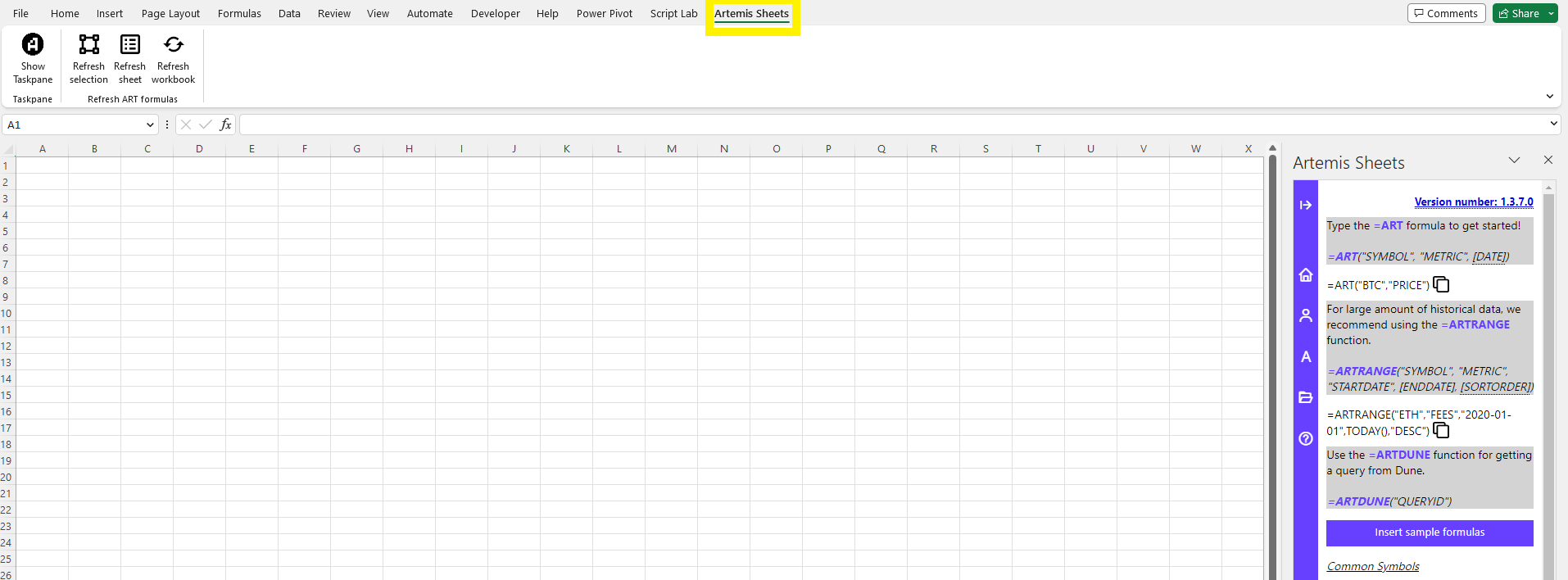 3. You're ready to get started with your first =ART() formula!
See [syntax-and-formulas](/artemis-sheets/metrics/syntax-and-formulas) for sample formulas or click "**Insert sample formulas"** to write your first formula.
3. You're ready to get started with your first =ART() formula!
See [syntax-and-formulas](/artemis-sheets/metrics/syntax-and-formulas) for sample formulas or click "**Insert sample formulas"** to write your first formula.